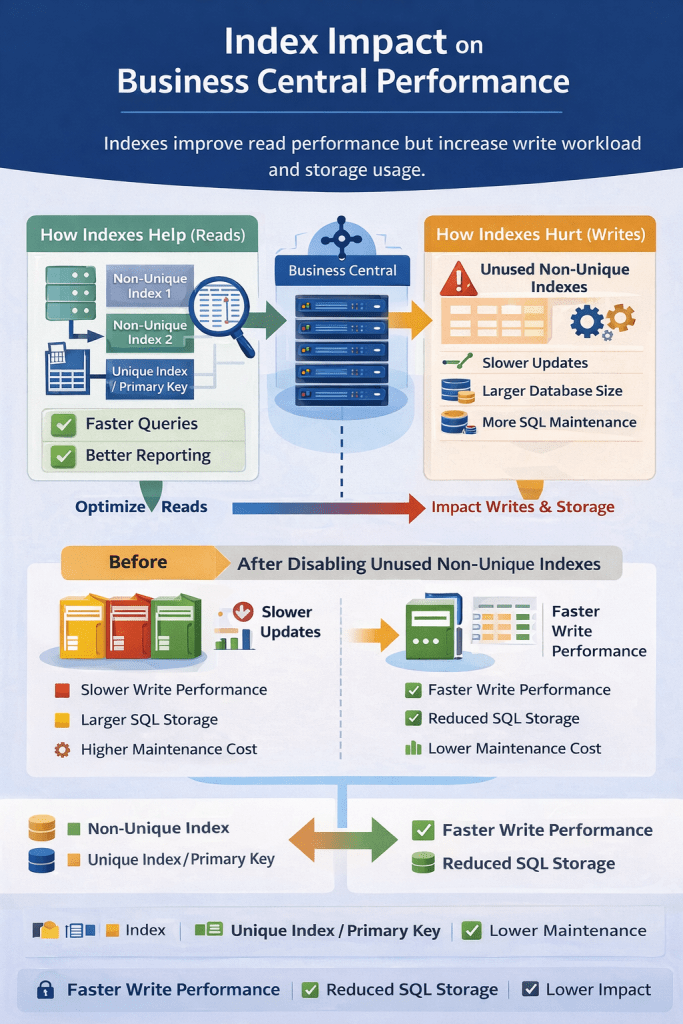
In version 28 of Microsoft Dynamics 365 Business Central, Microsoft introduced a powerful database optimization feature that allows administrators to disable non-unique indexes with low usage.
This capability provides greater control over database performance, storage usage, and write operations, especially in environments with large datasets and high transaction volumes.
Why Index Optimization Matters
Indexes improve query performance, but every index also introduces maintenance overhead.
Whenever records are inserted, updated, or deleted, the SQL engine must also update all associated indexes.
In high-transaction systems such as inventory, warehouse, and manufacturing operations, unnecessary indexes can lead to:
- Slower posting performance
- Increased SQL storage consumption
- Higher index maintenance cost
- Longer backup and restore time
By allowing administrators to disable rarely used indexes, Business Central now provides more flexibility to tune database performance.
How to Disable an Index
To disable an index, follow these steps:
- Open Table Information in Business Central.
- Click on Table No
- It will open Table Data Management Card
- Clear the Enabled in Database checkbox.
Once disabled, the index is immediately removed from active maintenance, meaning the database engine no longer updates it during data modifications.

Index Types That Cannot Be Disabled

These indexes are essential for system functionality and consistency, so they cannot be turned off.
Activation Behavior
Index management behaves differently depending on the operation.

The delayed activation for enabling indexes prevents heavy index rebuild operations during working hours.
Technical Impact on Performance
1. Faster Write Operations
Each index must be updated when records change.Disabling unused indexes reduces the number of updates required, resulting in faster:
2. Reduced SQL Storage Consumption
Indexes can consume a significant portion of database storage. In large systems with millions of records, removing unnecessary indexes can free several gigabytes of space.
3. Better Performance During High Transactions
Environments with high transaction volumes, such as:
- Manufacturing
- Retail
- E-commerce integrations
- Warehouse management
can benefit from reduced index overhead during posting.
For example:
When posting thousands of item journal lines, fewer indexes mean less SQL maintenance work.
4. Improved SQL Maintenance Operations
Large numbers of indexes increase the workload for:
- SQL statistics updates
- Index rebuilds
- Database maintenance jobs
By disabling unused indexes, administrators can reduce maintenance windows and resource consumption.
The ability to turn off non-unique indexes per company in Microsoft Dynamics 365 Business Central v28 is a valuable addition for system administrators and technical consultants.
It provides greater flexibility in optimizing database performance, storage usage, and transaction throughput, especially in large Business Central environments.
When used carefully with proper analysis, this feature can significantly improve system efficiency and operational performance.

 Ammolh Saallvi Blog