Turn Off Indexes in Microsoft Dynamics 365 Business Central v28

In version 28 of Microsoft Dynamics 365 Business Central, Microsoft introduced a powerful database optimization feature that allows administrators to disable non-unique indexes with low usage.

This capability provides greater control over database performance, storage usage, and write operations, especially in environments with large datasets and high transaction volumes.

Why Index Optimization Matters

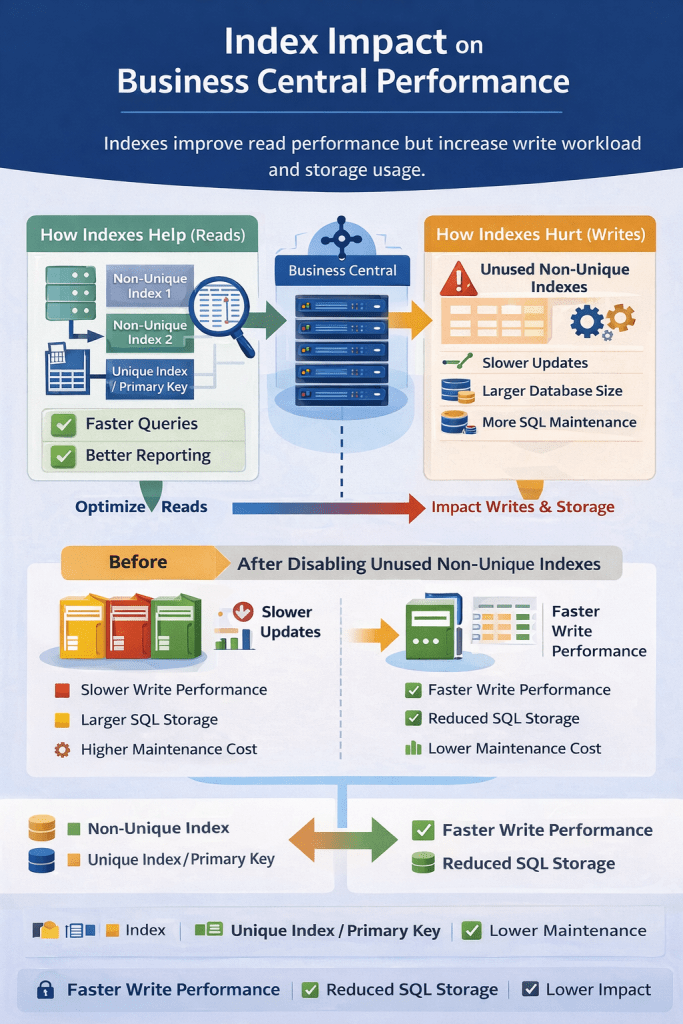
Indexes improve query performance, but every index also introduces maintenance overhead.

Whenever records are inserted, updated, or deleted, the SQL engine must also update all associated indexes.

In high-transaction systems such as inventory, warehouse, and manufacturing operations, unnecessary indexes can lead to:

  • Slower posting performance
  • Increased SQL storage consumption
  • Higher index maintenance cost
  • Longer backup and restore time

By allowing administrators to disable rarely used indexes, Business Central now provides more flexibility to tune database performance.

How to Disable an Index

To disable an index, follow these steps:

  1. Open Table Information in Business Central.
  2. Click on Table No
  3. It will open Table Data Management Card
  4. Clear the Enabled in Database checkbox.

Once disabled, the index is immediately removed from active maintenance, meaning the database engine no longer updates it during data modifications.

Article content

Index Types That Cannot Be Disabled

Article content

These indexes are essential for system functionality and consistency, so they cannot be turned off.

Activation Behavior

Index management behaves differently depending on the operation.

Article content

The delayed activation for enabling indexes prevents heavy index rebuild operations during working hours.

Technical Impact on Performance

1. Faster Write Operations

Each index must be updated when records change.Disabling unused indexes reduces the number of updates required, resulting in faster:


2. Reduced SQL Storage Consumption

Indexes can consume a significant portion of database storage. In large systems with millions of records, removing unnecessary indexes can free several gigabytes of space.


3. Better Performance During High Transactions

Environments with high transaction volumes, such as:

  • Manufacturing
  • Retail
  • E-commerce integrations
  • Warehouse management

can benefit from reduced index overhead during posting.

For example:

When posting thousands of item journal lines, fewer indexes mean less SQL maintenance work.


4. Improved SQL Maintenance Operations

Large numbers of indexes increase the workload for:

  • SQL statistics updates
  • Index rebuilds
  • Database maintenance jobs

By disabling unused indexes, administrators can reduce maintenance windows and resource consumption.

The ability to turn off non-unique indexes per company in Microsoft Dynamics 365 Business Central v28 is a valuable addition for system administrators and technical consultants.

It provides greater flexibility in optimizing database performance, storage usage, and transaction throughput, especially in large Business Central environments.

When used carefully with proper analysis, this feature can significantly improve system efficiency and operational performance.


Optimizing Business Central Reports with the DataAccessIntent Property

When developing reports in Microsoft Dynamics 365 Business Central, performance and scalability are crucial—especially in cloud environments where system efficiency impacts everything from responsiveness to cost. One often-overlooked feature that can significantly enhance report performance is the DataAccessIntent property.

What Is DataAccessIntent?

The DataAccessIntent property is available on report objects in AL. It specifies how a report should access the database—whether it’s read-only or read-write.

The property supports two values:

  • DataAccessIntent = ReadOnly
  • DataAccessIntent = ReadWrite

ReadOnly

When you set DataAccessIntent = ReadOnly, you are explicitly telling the platform that your report only needs to read data from the database and will not perform any write operations.

Why is this important?

  • Better Performance: In Business Central SaaS, reports marked as ReadOnly can run on read-only replicas of the database. This reduces the load on the primary (read-write) database and enhances scalability.
  • Improved Report Execution Time: Since queries are routed to optimized replicas, report rendering can be faster and more efficient.

ReadWrite

If your report needs to modify data during execution—a rare scenario—you should use DataAccessIntent = ReadWrite. This forces the report to run on the primary database.

However, you should avoid using ReadWrite unless absolutely necessary because:

  • It eliminates the benefit of using read replicas.
  • It may degrade performance, especially under high concurrency.

When to Use Each

ScenarioUse ReadOnly?Use ReadWrite?
Standard data listing/reporting
Reports that update records
Diagnostic or audit reports

How to Set DataAccessIntent in AL

report 50100 "Customer Balance Report"
{
    DataAccessIntent = ReadOnly;

    dataset
    {
        dataitem(Customer; Customer)
        {
            column(Name; Name) { }
            column(Balance; "Balance (LCY)") { }
        }
    }

    layout
    {
        // Define RDLC or Word layout
    }
}

By default, if you don’t specify the property, it behaves as ReadWrite. So it’s a good practice to explicitly set it to ReadOnly when applicable.

Important Considerations

  • The DataAccessIntent property is only a hint to the Business Central server. The server may not always be able to use a read-only replica, even if the property is set to ReadOnly.
  • If a report with DataAccessIntent set to ReadOnly attempts to modify data, a runtime error will occur.
  • The DataAccessIntent property can be overridden by the user through the “Database Access Intent List” page in Business Central.

In short: if your report doesn’t write data, use DataAccessIntent = ReadOnly. It’s an easy win for performance and best practice compliance.

Stay tuned for more….

How to restore environment in business central

Have you guys remember my tweet regarding the restoration of environment .Following is the tweet

If you still not follow me on then please follow me on twitter for more updates

So in month of November 2020 I faced this problem as due to some issue production environment got hanged and user abruptly close the session .Post that data in some tables got messy and couldn’t recover in time and then I need to contact MS guys to restore environment which took almost a week and till that time customer transaction got halted. That time question came to my mind how customer will handle all these things by going forward and MS guy responded me that time that this feature is going to added in Admin center in upcoming release.

Now with released of Business central 17.3 this feature become reality .It is still in preview mode.

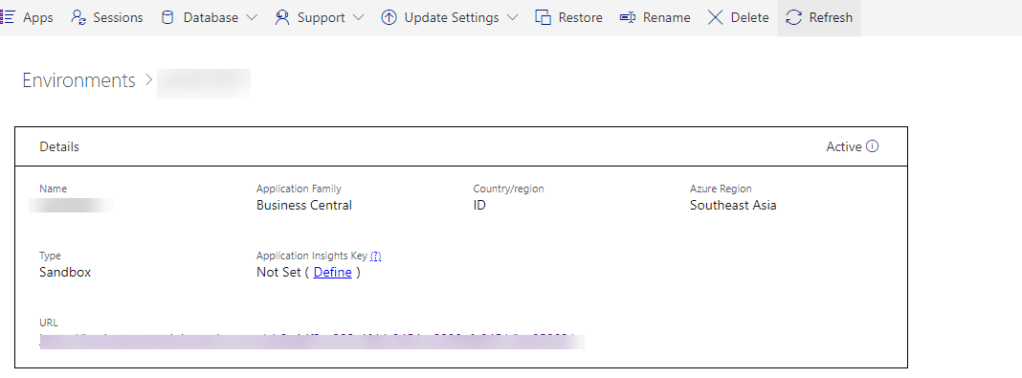
Lets look at how to restore the environment

To restore environment you need to have access to admin center.

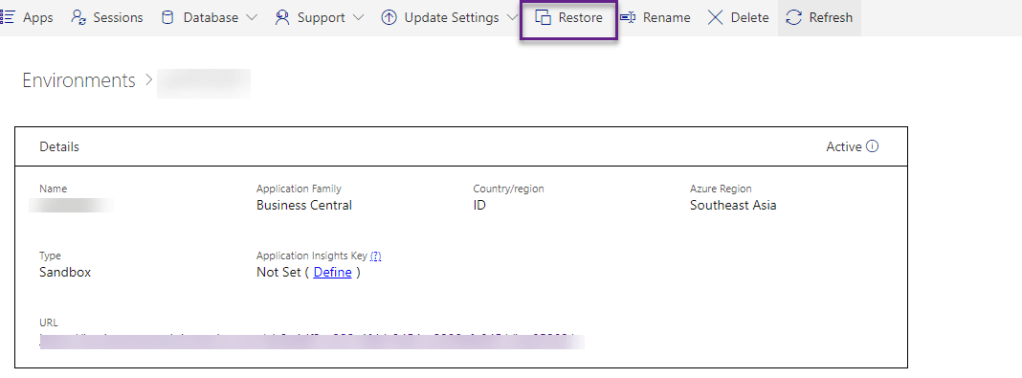
  1. Go to Admin center.
  2. Select Environment

3. Click on Restore

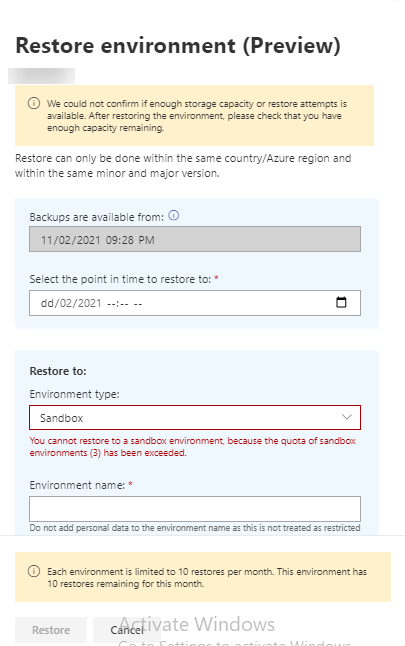
4. In the restore environment window select date and time to which you want to restore the environment.

5. Select the type of environment such as sandbox or production.

6. Finally Name for restored environment.

7. Hit the restore

Important points

  1. Backups are available for past 30 days
  2.  The number of restore attempts will be limited to 10 attempts per environment/per month.
  3. The recovery is allowed within a maximum of three immediately preceding versions of Business Central (including minor and major updates), but still within a maximum of 30 days (from the point of the environment creation)

Hope this will help you.

Stay tune for more.