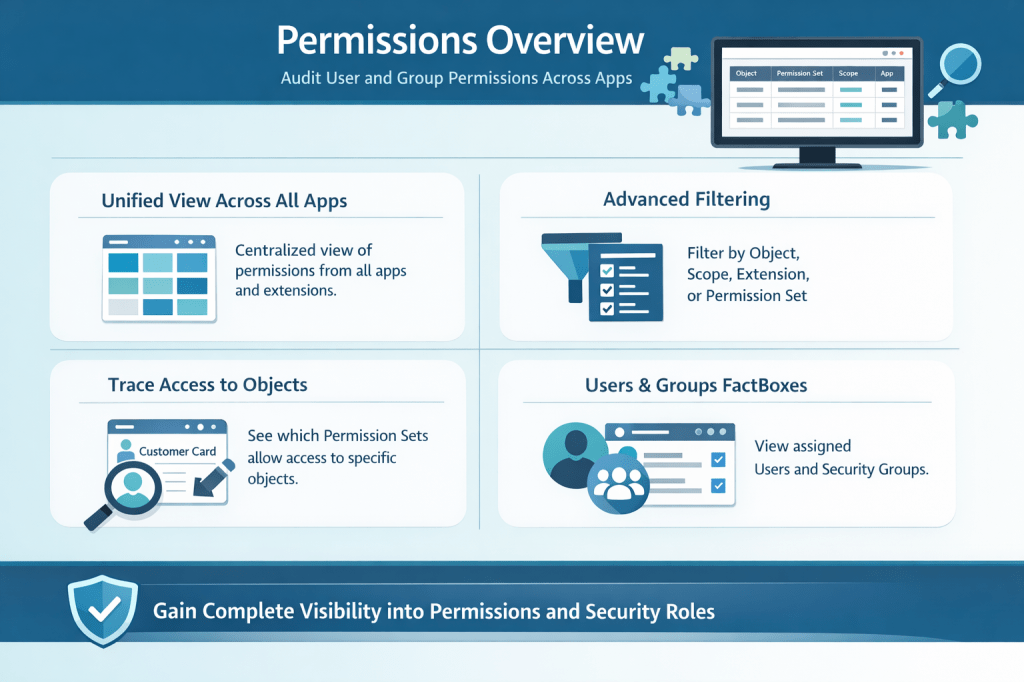
With Business Central 2026 release wave 1 (v28), Microsoft introduces a powerful new capability — the Permissions Overview page, providing a centralized view of permissions across all apps and extensions.
This feature significantly improves how administrators analyze, audit, and troubleshoot security configurations in complex environments.
In earlier versions, analyzing permissions was fragmented and time-consuming:
- Permissions spread across multiple apps and extensions
- No single view to understand who has access to what
- Difficult to trace Which permission set grants access and Which users or groups are assigned.
What’s New in BC28?
The Permissions Overview page provides a unified and centralized view of all permission sets across:
- Base application
- Installed extensions
- Custom apps
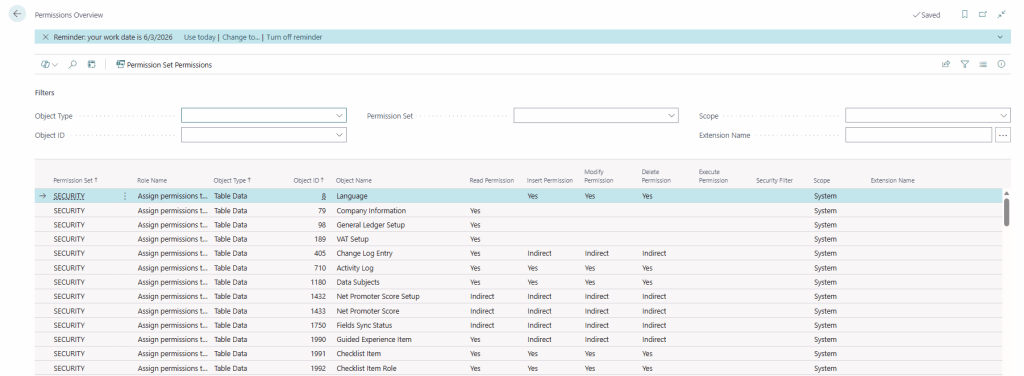
1. Unified View Across All Apps
The Permissions Overview page provides a centralized view of permissions across all apps and extensions, eliminating the need to navigate multiple sources to understand access configurations.
2. Advanced Filtering
Administrators can efficiently filter permissions by object type, scope, extension, or permission set, enabling quick and precise identification of relevant access rights.
3. Trace Access to Specific Objects
The system allows you to easily determine which permission sets grant access to a specific object, providing clear visibility into how permissions are assigned.
4. FactBoxes for User and Group Assignment
Built-in Fact Boxes display the users and security groups associated with each permission set, offering complete transparency into access assignments.
This will help administrator for
1. Improved Security Auditing
The new Permissions Overview enables administrators to perform faster and more accurate security audits by clearly identifying excessive permissions, detecting unused or redundant permission sets, and validating compliance requirements with greater confidence.
2. Simplified Troubleshooting
When users encounter access issues, administrators can quickly search for the relevant object, identify the required permission sets, and verify user or group assignments, significantly reducing the time required to resolve issues.
3. Better Dependency Analysis
In environments with multiple extensions, where overlapping permissions are common, this feature helps identify conflicts, understand permission dependencies, and avoid duplication, leading to a more structured and maintainable security model.
4. Better Governance and Compliance
This feature supports stronger governance by enabling efficient internal audits, simplifying external compliance checks, and ensuring that role-based access is aligned with organizational policies.
5. Improved Role Design
Functional consultants can design cleaner and more effective permission sets by avoiding over-per missioning and aligning access rights closely with business roles and responsibilities.
6. Enhanced User Management
Administrators gain complete visibility into who has access, why they have access, and through which permission sets, resulting in better control and transparency over user permissions.
The Permissions Overview page in Microsoft Dynamics 365 Business Central v28 is a major step forward in security management and transparency.
It transforms permission analysis from a fragmented process into a centralized, efficient, and user-friendly experience.


 Ammolh Saallvi Blog