Audit User and Group Permissions Across Apps in Microsoft Dynamics 365 Business Central v28

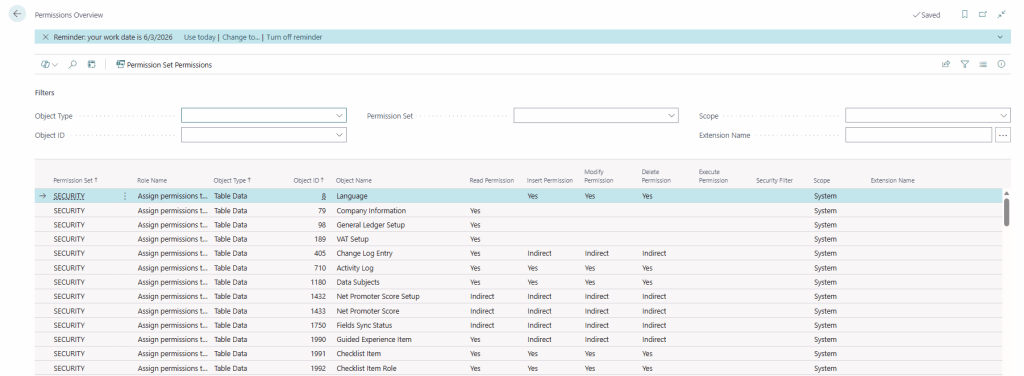
With Business Central 2026 release wave 1 (v28), Microsoft introduces a powerful new capability — the Permissions Overview page, providing a centralized view of permissions across all apps and extensions.

This feature significantly improves how administrators analyze, audit, and troubleshoot security configurations in complex environments.

In earlier versions, analyzing permissions was fragmented and time-consuming:

  • Permissions spread across multiple apps and extensions
  • No single view to understand who has access to what
  • Difficult to trace Which permission set grants access and Which users or groups are assigned.

What’s New in BC28?

The Permissions Overview page provides a unified and centralized view of all permission sets across:

  • Base application
  • Installed extensions
  • Custom apps

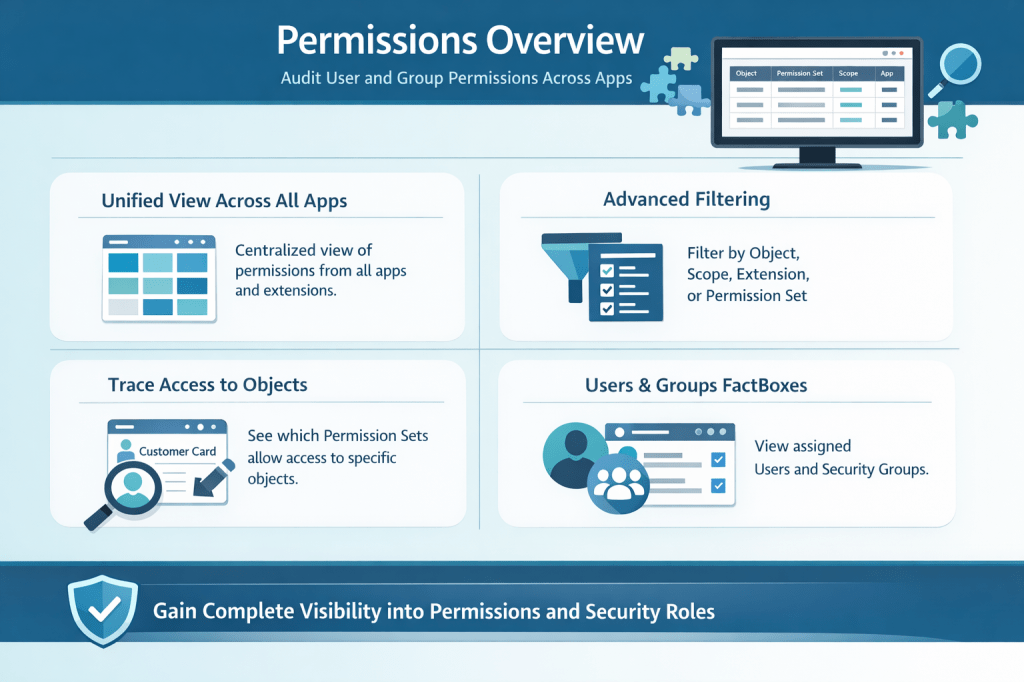
1. Unified View Across All Apps

The Permissions Overview page provides a centralized view of permissions across all apps and extensions, eliminating the need to navigate multiple sources to understand access configurations.


2. Advanced Filtering

Administrators can efficiently filter permissions by object type, scope, extension, or permission set, enabling quick and precise identification of relevant access rights.


3. Trace Access to Specific Objects

The system allows you to easily determine which permission sets grant access to a specific object, providing clear visibility into how permissions are assigned.


4. FactBoxes for User and Group Assignment

Built-in Fact Boxes display the users and security groups associated with each permission set, offering complete transparency into access assignments.

This will help administrator for

1. Improved Security Auditing

The new Permissions Overview enables administrators to perform faster and more accurate security audits by clearly identifying excessive permissions, detecting unused or redundant permission sets, and validating compliance requirements with greater confidence.


2. Simplified Troubleshooting

When users encounter access issues, administrators can quickly search for the relevant object, identify the required permission sets, and verify user or group assignments, significantly reducing the time required to resolve issues.


3. Better Dependency Analysis

In environments with multiple extensions, where overlapping permissions are common, this feature helps identify conflicts, understand permission dependencies, and avoid duplication, leading to a more structured and maintainable security model.

4. Better Governance and Compliance

This feature supports stronger governance by enabling efficient internal audits, simplifying external compliance checks, and ensuring that role-based access is aligned with organizational policies.


5. Improved Role Design

Functional consultants can design cleaner and more effective permission sets by avoiding over-per missioning and aligning access rights closely with business roles and responsibilities.


6. Enhanced User Management

Administrators gain complete visibility into who has access, why they have access, and through which permission sets, resulting in better control and transparency over user permissions.

The Permissions Overview page in Microsoft Dynamics 365 Business Central v28 is a major step forward in security management and transparency.

It transforms permission analysis from a fragmented process into a centralized, efficient, and user-friendly experience.
Turn Off Indexes in Microsoft Dynamics 365 Business Central v28

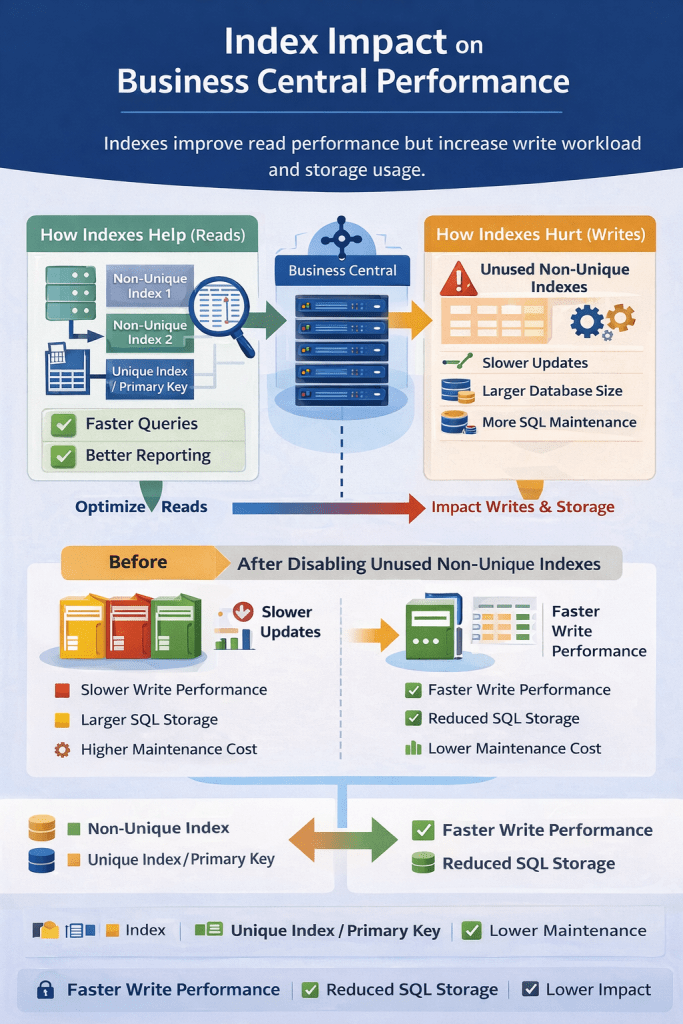
In version 28 of Microsoft Dynamics 365 Business Central, Microsoft introduced a powerful database optimization feature that allows administrators to disable non-unique indexes with low usage.

This capability provides greater control over database performance, storage usage, and write operations, especially in environments with large datasets and high transaction volumes.

Why Index Optimization Matters

Indexes improve query performance, but every index also introduces maintenance overhead.

Whenever records are inserted, updated, or deleted, the SQL engine must also update all associated indexes.

In high-transaction systems such as inventory, warehouse, and manufacturing operations, unnecessary indexes can lead to:

  • Slower posting performance
  • Increased SQL storage consumption
  • Higher index maintenance cost
  • Longer backup and restore time

By allowing administrators to disable rarely used indexes, Business Central now provides more flexibility to tune database performance.

How to Disable an Index

To disable an index, follow these steps:

  1. Open Table Information in Business Central.
  2. Click on Table No
  3. It will open Table Data Management Card
  4. Clear the Enabled in Database checkbox.

Once disabled, the index is immediately removed from active maintenance, meaning the database engine no longer updates it during data modifications.

Article content

Index Types That Cannot Be Disabled

Article content

These indexes are essential for system functionality and consistency, so they cannot be turned off.

Activation Behavior

Index management behaves differently depending on the operation.

Article content

The delayed activation for enabling indexes prevents heavy index rebuild operations during working hours.

Technical Impact on Performance

1. Faster Write Operations

Each index must be updated when records change.Disabling unused indexes reduces the number of updates required, resulting in faster:


2. Reduced SQL Storage Consumption

Indexes can consume a significant portion of database storage. In large systems with millions of records, removing unnecessary indexes can free several gigabytes of space.


3. Better Performance During High Transactions

Environments with high transaction volumes, such as:

  • Manufacturing
  • Retail
  • E-commerce integrations
  • Warehouse management

can benefit from reduced index overhead during posting.

For example:

When posting thousands of item journal lines, fewer indexes mean less SQL maintenance work.


4. Improved SQL Maintenance Operations

Large numbers of indexes increase the workload for:

  • SQL statistics updates
  • Index rebuilds
  • Database maintenance jobs

By disabling unused indexes, administrators can reduce maintenance windows and resource consumption.

The ability to turn off non-unique indexes per company in Microsoft Dynamics 365 Business Central v28 is a valuable addition for system administrators and technical consultants.

It provides greater flexibility in optimizing database performance, storage usage, and transaction throughput, especially in large Business Central environments.

When used carefully with proper analysis, this feature can significantly improve system efficiency and operational performance.

Approval Workflows for Item Journals in Microsoft Dynamics 365 Business Central

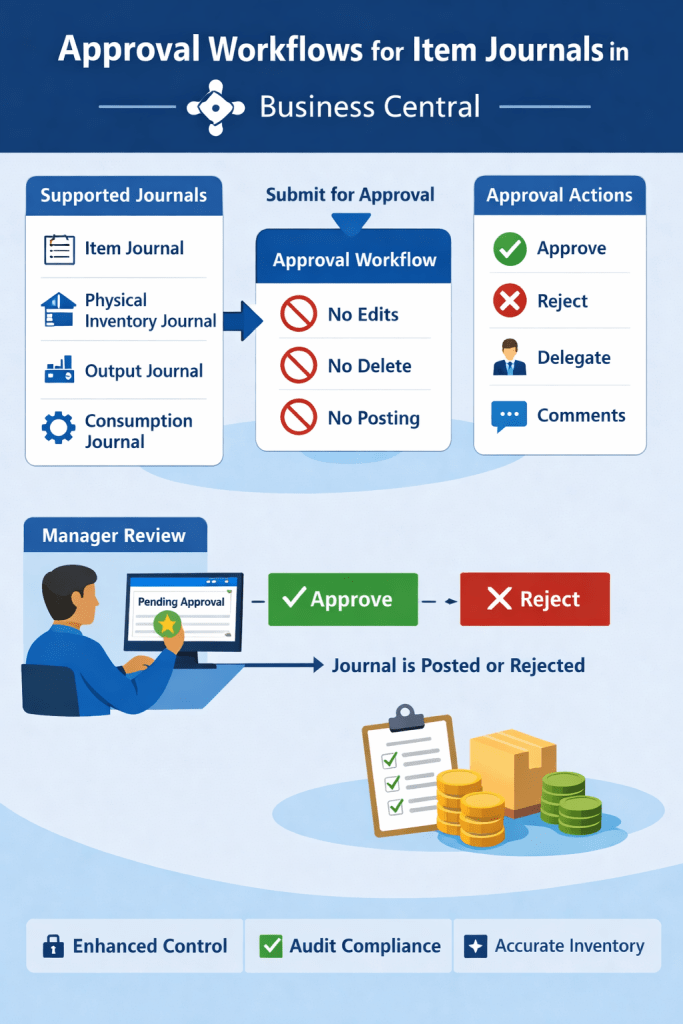
With the latest updates in Microsoft Dynamics 365 Business Central, Item Journals now support approval workflows, bringing the same level of control that previously existed only for General Journal batches.

This feature introduces stronger governance and internal control for inventory transactions, ensuring that critical stock movements are reviewed before being posted.


Why This Feature Matters

Inventory transactions such as adjustments, consumption, or production output directly impact stock valuation and financial reporting.

Without an approval process, users could accidentally or intentionally post incorrect entries.

The new approval workflow capability for Item Journals helps organizations:

  • Enforce inventory control policies
  • Prevent unauthorized postings
  • Improve audit compliance
  • Reduce operational errors

Journals That Support Approval Workflows

Approval workflows can now be applied to the following journals:

Article content
Article content

How the Approval Process Works

When a user submits a journal batch for approval, the system creates an approval entry.

During the approval process:

  • The journal cannot be edited
  • The journal cannot be deleted
  • The journal cannot be posted

These restrictions remain until the approval request is approved or canceled.

This prevents any changes that could bypass the approval process.

Article content

Example Scenario

Consider a manufacturing company using the Consumption Journal to record raw material usage.

Without approval:

A user could mistakenly consume 100 units instead of 10, impacting inventory valuation.

With approval workflows:

  1. The journal batch is submitted for approval
  2. A manager reviews the entries
  3. The manager approves or rejects the request

This ensures inventory accuracy and financial integrity.

Key Benefits

The introduction of approval workflows for Item Journals provides several advantages:

✔ Stronger internal control over inventory transactions

✔ Reduced risk of incorrect stock postings

✔ Better compliance with audit and governance requirements

✔ Consistent approval processes across financial and inventory journals

The ability to apply approval workflows to Item Journals in Microsoft Dynamics 365 Business Central is a valuable enhancement for organizations managing inventory and manufacturing operations.

By ensuring that sensitive inventory transactions are reviewed before posting, businesses can maintain accurate stock records and stronger operational control.

Add Pictures to Item Variants in Microsoft Dynamics 365 Business Central

In the latest updates of Microsoft Dynamics 365 Business Central, you can now store pictures for Item Variants, making it easier to visually differentiate product options such as color, size, or style.

This enhancement improves usability for sales teams, warehouse staff, and product managers by allowing quick identification of product variations directly from the system.

Why This Feature is Useful

Many companies manage products with multiple variants, for example:

  • T-shirts with different colors
  • Jewelry with different metal types
  • Shoes with different sizes

Previously, variants were identified mainly through codes or descriptions. Now you can attach variant-specific images, making it easier to visually confirm the correct option.

Example:

ItemVariantImage
RingGoldGold ring image
RingSilverSilver ring image

This helps reduce order errors and improves product clarity.

How to Add a Picture to an Item Variant

Follow these steps to attach an image to a variant.

1. Open the Item Card

Navigate to the Item Card of the product.

2. Open Variants

Choose the Variants action to view the list of item variants.

3. Select a Variant

Select the variant you want to update and open the Item Variant Card.

4. Add or Manage the Image

On the Picture FactBox, choose one of the following actions:

Article content

Where This Feature Helps Most

This feature is particularly valuable in industries with visually distinct variants:

  • Retail
  • Fashion
  • Jewelry
  • Manufacturing
  • E-commerce integrations

Warehouse staff can quickly verify the correct variant during picking and packing, reducing mistakes.


Practical Example

Suppose you sell a Bracelet with multiple color options.

Variant CodeDescriptionImage
BR-GLDGold BraceletGold image
BR-SLVSilver BraceletSilver image
BR-BLKBlack BraceletBlack image

By attaching pictures, users can instantly confirm they are selecting the correct variant.


Summary

The Item Variant Picture feature in Microsoft Dynamics 365 Business Central enhances product management by:

  • Allowing images for each variant
  • Improving visual identification
  • Reducing selection errors
  • Enhancing user experience

This is a small but powerful improvement that helps organizations manage complex product catalogs more efficiently.