With the latest updates in Microsoft Dynamics 365 Business Central, Item Journals now support approval workflows, bringing the same level of control that previously existed only for General Journal batches.
This feature introduces stronger governance and internal control for inventory transactions, ensuring that critical stock movements are reviewed before being posted.
Why This Feature Matters
Inventory transactions such as adjustments, consumption, or production output directly impact stock valuation and financial reporting.
Without an approval process, users could accidentally or intentionally post incorrect entries.
The new approval workflow capability for Item Journals helps organizations:
Enforce inventory control policies
Prevent unauthorized postings
Improve audit compliance
Reduce operational errors
Journals That Support Approval Workflows
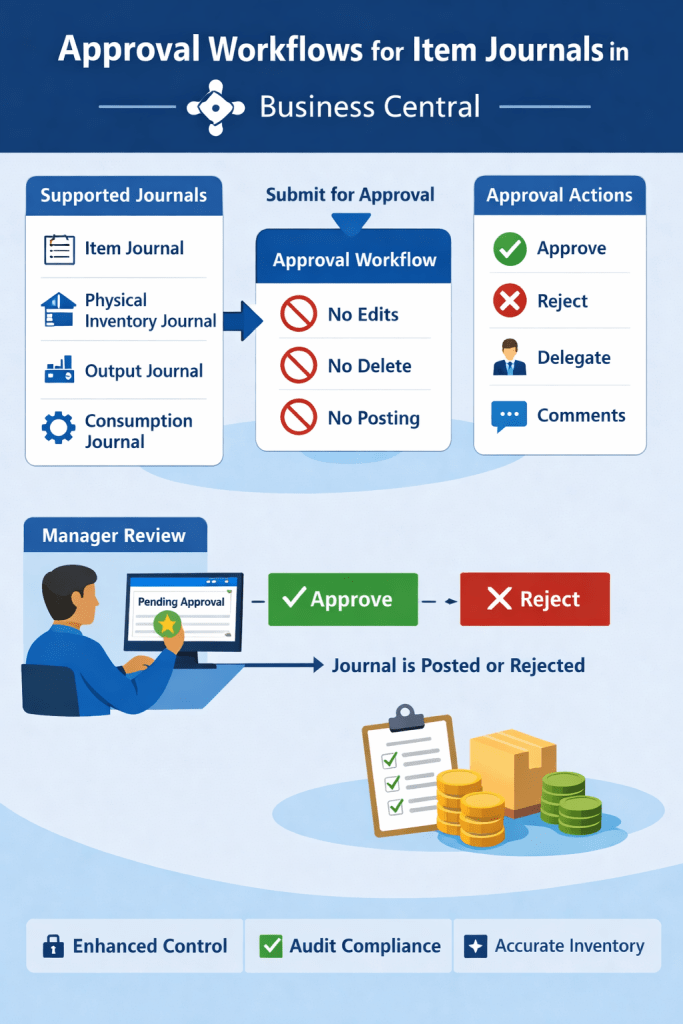
Approval workflows can now be applied to the following journals:
How the Approval Process Works
When a user submits a journal batch for approval, the system creates an approval entry.
During the approval process:
The journal cannot be edited
The journal cannot be deleted
The journal cannot be posted
These restrictions remain until the approval request is approved or canceled.
This prevents any changes that could bypass the approval process.
Example Scenario
Consider a manufacturing company using the Consumption Journal to record raw material usage.
Without approval:
A user could mistakenly consume 100 units instead of 10, impacting inventory valuation.
With approval workflows:
The journal batch is submitted for approval
A manager reviews the entries
The manager approves or rejects the request
This ensures inventory accuracy and financial integrity.
Key Benefits
The introduction of approval workflows for Item Journals provides several advantages:
✔ Stronger internal control over inventory transactions
✔ Reduced risk of incorrect stock postings
✔ Better compliance with audit and governance requirements
✔ Consistent approval processes across financial and inventory journals
The ability to apply approval workflows to Item Journals in Microsoft Dynamics 365 Business Central is a valuable enhancement for organizations managing inventory and manufacturing operations.
By ensuring that sensitive inventory transactions are reviewed before posting, businesses can maintain accurate stock records and stronger operational control.
Every major release of Microsoft Dynamics 365 Business Central introduces improvements that impact how developers design, build, and maintain extensions.
Version 28 (2026 Release Wave 1) focuses strongly on performance optimization, platform modernization, and improved developer productivity.
For developers building extensions using AL and Visual Studio Code, several changes require attention during upgrades.
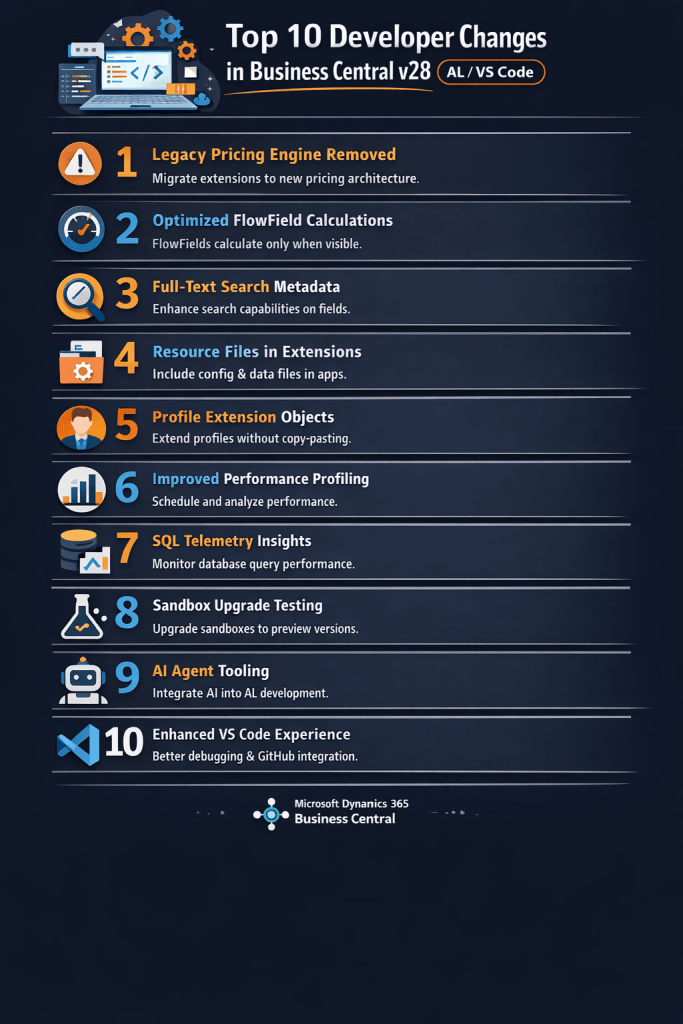
In this article, I will walk through the Top 10 developer changes in Business Central v28 and what they mean for your extensions.
1. Legacy Pricing Engine Removed
One of the biggest platform changes in v28 is the complete removal of the legacy pricing engine.
Microsoft introduced the new Price List architecture in earlier versions, and now it becomes the only supported pricing model.
Developer Impact
Extensions relying on older pricing logic must migrate.
Areas to review include:
custom price calculations
discount logic
pricing-related code units
integrations referencing legacy pricing tables
The new pricing system provides a more flexible framework for managing pricing rules and discounts.
2. FlowField Calculation Optimization
Business Central v28 introduces an important optimization for FlowField calculations.
Previously, FlowFields could be calculated even if they were not visible on the page.
In v28, FlowFields are calculated only when the field is visible in the UI.
Benefits
fewer SQL queries
faster page loading
improved scalability for large datasets
3. Improved Search Metadata
Search and navigation are significantly improved in v28.
Developers can now provide better search metadata that improves how users discover pages, actions, and data.
Why this matters
In large Business Central environments with hundreds of pages and reports, improved search helps users locate functionality much faster.
Developers should review:
page captions
action captions
field descriptions
Clear naming improves search results and usability.
4. Resource Files in Extensions
Another useful improvement in v28 is the ability to include resource files within extensions.
These files can store:
configuration data
templates
initialization data
Benefits
Developers can package configuration data directly with the extension instead of writing complex installation code.
This simplifies deployment and improves maintainability.
5. Profile Extension Objects
Customizing user profiles previously required copying base profiles, which created upgrade issues.
Business Central v28 introduces profile extension objects, allowing developers to extend profiles without duplication.
Advantages
cleaner customization model
easier upgrades
better maintainability
Developers can now modify Role Centers and user experiences in a more structured way.
6. Improved Performance Profiling
Performance troubleshooting becomes easier with new profiling improvements.
Developers can capture performance data to analyze:
long-running AL procedures
page load times
inefficient database queries
Why this matters
In large implementations with many extensions, performance bottlenecks can be difficult to detect.
Profiling tools help developers identify inefficient code earlier.
7. SQL Telemetry Insights
Business Central v28 provides better telemetry insights for database operations.
Telemetry data includes:
SQL query execution time
table interactions
query performance statistics
This information integrates with Microsoft Azure Application Insights.
Developer Advantage
Developers can monitor real production workloads and optimize extensions based on actual usage patterns.
8. Sandbox Upgrade Testing Improvements
Upgrade testing is easier in v28.
Developers can now upgrade existing sandbox environments to preview versions.
Benefits
test extension compatibility earlier
simulate production upgrades
reduce upgrade risks
This is particularly important for partners maintaining multiple customer environments.
9. AI Agent Development Scenarios
Microsoft continues to move toward AI-assisted development workflows.
New tools and integrations enable AI agents to assist developers in tasks such as:
analyzing AL code
generating documentation
improving developer productivity
This aligns with Microsoft’s broader AI strategy across the Dynamics ecosystem.
10. Enhanced VS Code Development Experience
The development experience in Visual Studio Code continues to improve.
Enhancements include:
better debugging capabilities
improved symbol downloads
smoother Git integration
improved navigation in large AL projects
These improvements help developers manage complex extension projects more efficiently.
What Developers Should Prepare for in v28
Before upgrading to Business Central v28, developers should review their extensions carefully.
Key areas to validate include:
pricing logic compatibility
FlowField calculations
performance-sensitive code
search metadata
extension initialization processes
Testing extensions in sandbox environments before production upgrades is strongly recommended.
Business Central v28 continues Microsoft’s focus on modernizing the platform and improving developer productivity.
The most significant changes for developers include:
removal of legacy pricing logic
optimized FlowField calculations
improved telemetry and profiling tools
better development workflows in Visual Studio Code
Artificial Intelligence is rapidly expanding inside enterprise systems. With Microsoft Dynamics 365 Business Central v27.4, Microsoft now exposes a first-class agent creation capability — allowing you to define, configure, and run intelligent agents directly inside your ERP environment.
In this blog, we’ll walk through how agents work, the creation experience based on what’s available in the product today.
🚀 What Are AI Agents in Business Central?
In Business Central, AI agents are software assistants that can:
Understand natural language instructions
Execute business tasks against Business Central data
Follow configured rules and permissions
Operate autonomously or with human review
These agents sit at a higher abstraction layer than traditional workflows — they interpret intent and then coordinate actions across standard Business Central APIs, pages, and logic.
🛠 Step-by-Step: Creating an Agent in Business Central
Here’s a distilled implementation walk-through based on the video and documentation:
1. Enable Agent Capabilities
Before you can create agents, you must:
Enable Custom Agent capability in your Business Central environment
Have a sandbox tenant for experimentation
Ensure you have relevant permission sets such as AGENT-ADMIN and AGENT-DIAGNOSTICS applied to your user account
2. Start the Agent Wizard
Once enabled:
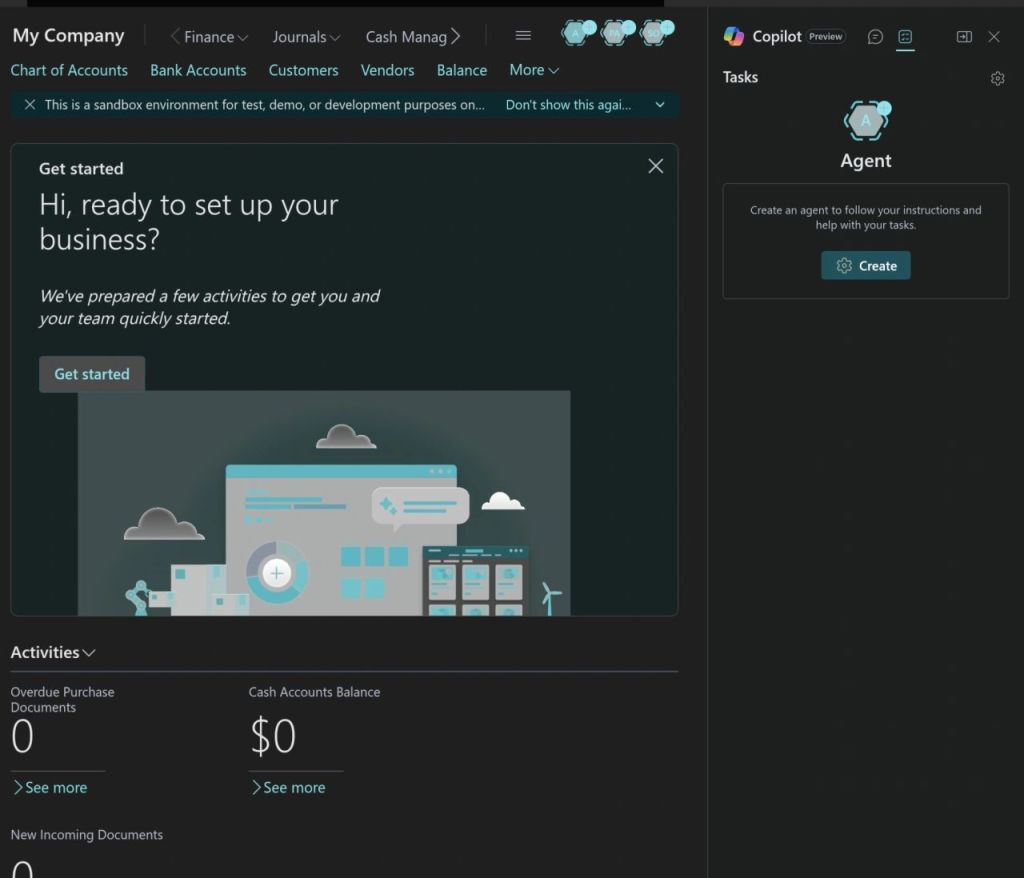
Click the “Agent” icon in the role centre
Choose Create New Agent
Select a template (e.g., Sales Validation) or start from scratch
Provide:
The installer guides you through setting up:
Purpose
Profile
Permissions
Agents are treated like users, so they must have clear permissions defining what Business Central data they can access and act on.
3. Define Agent Instructions
This is the heart of the agent. Instructions are plain-language “task definitions” that guide what the agent should do when triggered.
A basic instruction structure looks like:
Introductory purpose
Step-by-step tasks
Expected output or result
Example :
“You are a Business Central agent. When invoked, check all overdue receivables and create a work list of customers where the balance exceeds credit terms.”
Agents use this instruction to orchestrate actions, call APIs, or run logic — all while respecting security.
4. Configure Execution Profile
Each agent runs under a specific profile:
Choose standard or custom roles used in Business Central
Profiles determine UI access and actions available to the agent
Permissions are tied to the profile
Profiles limit what the agent can read or write — essential for governance.
5. Test and Activate
Once configured:
Use the Agent Task Playground to simulate tasks
Review output and refine instructions
When ready, activate the agent
The agent can run immediately or wait for a trigger
In preview today, scheduling and automated triggers are limited — most agents are started manually or via designated events.
📍 Real Business Examples
Agents being highlighted in Business Central include:
🔹 Sales Order Agent
Monitors a designated email inbox
Parses incoming customer requests
Locates or creates the customer record
Verifies item availability
Generates and sends quotes or orders via email
Keeps the human reviewer in the loop for approvals and changes
This helps sales teams minimize manual order entry by automating standard order processing tasks.
🔹 Payables & AP Agents
Similar to sales agents, agents can automate Accounts Payable workflows by:
Monitoring invoice email inboxes
Extracting invoice data using AI
Drafting vendor invoices inside Business Central
Letting users review and finalize postings
This frees AP teams from repetitive data entry and improves efficiency.
AI agents in Microsoft Dynamics 365 Business Central are more than an experiment — they’re a new paradigm for embedding intelligence inside operational ERP processes. Rather than writing bespoke automation, you define business intent, and the system interprets and operationalizes it — provided you set the rules, permissions, and expectations correctly.
The world of Business Central development is evolving rapidly—and one of the most powerful accelerators in recent years is Copilot. With AI deeply integrated into the Microsoft ecosystem, developers building extensions with AL now have an intelligent partner that speeds up development, enhances accuracy, and improves productivity.
🧠 What Is Copilot in Business Central?
Copilot is Microsoft’s AI-powered assistant designed to help developers, consultants, and end-users across Dynamics 365. For Business Central development, Copilot works in multiple ways:
It acts like a smart co-developer—always ready, always fast.
💻 Copilot Inside AL Development (VS Code Integration)
To leverage Copilot for AL development, developers use the GitHub Copilot extension in Visual Studio Code. This integration enables:
✔ Instant AL Code Generation
Developers can write a comment or a simple description, and Copilot generates the AL code structure automatically.
Example:
// Create a sales quote scheduler job that sends reminders
Copilot produces the full codeunit, job logic, and scheduling pattern.
✔ Faster Page & Table Extensions
Copilot instantly creates field additions, actions, triggers, and layouts without manual typing.
✔ API & Permission Set Generation
Perfect for rapid prototyping.
🤖 Using AI Inside AL Extensions
You can integrate AI into your custom extensions using Copilot-enabled system codeunits or external AI services.
Example: A simple AI-driven item description generator:
codeunit 50100 "Item AI Description"
{
    procedure Generate(ItemRec: Record Item): Text
    var
        Copilot: Codeunit "Copilot System";
    begin
        exit(
            Copilot.GenerateText(
                'Create a professional marketing description for item: ' + ItemRec.Description
            )
        );
    end;
}
This allows users to generate product descriptions instantly saving hours of manual work.
⚡ How Copilot Improves AL Developer Productivity
🟦 1. Rapid Coding
Copilot reduces 60–70% of repetitive development effort.
🟦 2. Fewer Syntax Errors
Copilot understands AL structures and suggests correct patterns.
🟦 3. Code Understanding
It can analyze and explain legacy AL code—very useful during upgrades from NAV to BC.
🟦 4. Documentation
Automatically generates comments and XML documentation.
🟦 5. Code Quality
Copilot suggests modern patterns like interfaces, single-responsibility design, and event-driven architecture.
🚨 Limitations—What Developers Should Know
Despite its strengths, Copilot is not perfect:
It may generate outdated syntax or patterns.
It cannot validate AL compiler rules.
It sometimes repeats code blocks unnecessarily.
Developers must always review and refactor generated output.
Copilot is a booster, not a replacement for AL expertise.
Copilot is not just a trend—it’s a game changer for Business Central developers. It speeds up AL development, supports learning, and enhances overall code quality. By embracing Copilot, organizations can deliver extensions faster, reduce development cost, and empower developers to focus on business logic rather than repetitive tasks.
The future of Business Central development is AI-assisted, and Copilot is leading the way.
Recently while running a tenant synchronization in Microsoft Dynamics 365 Business Central (on-prem), I encountered an error during the Sync-NAVTenant process:
This error typically occurs during tenant synchronization and can halt your deployment or upgrade process. The issue stems from corrupted or incomplete metadata in the app schema snapshot table, specifically related to table extensions.
The error indicates that the $ndo$navappschemasnapshot system table contains table extension records that are missing the required appid field. This can happen due to:
Incomplete app installations or uninstallations
Failed upgrade processes
Database corruption during extension deployment
Manual modifications to extensions without proper cleanup.
The Solution
The fix involves cleaning up the corrupted table extension metadata from the schema snapshot table. Here’s the SQL query that resolves the issue:
USE [YourDatabaseName]
GO

DELETE FROM [$ndo$navappschemasnapshot]
WHERE (istableextension = 1)
GO
The “Missing appid on table extension metadata” error can be frustrating, but it’s usually straightforward to resolve with the SQL cleanup approach. Remember to always backup your database before making direct SQL modifications and test the solution in a non-production environment first.
If you face a similar issue during tenant sync or app upgrade, this SQL cleanup should help you recover quickly.
The rise of AI-powered coding assistants has sparked a fascinating shift in the consulting world. Functional consultants, traditionally focused on business processes and requirements, are now picking up coding tools and creating technical solutions themselves. This phenomenon, often called “vibe coding,” is reshaping team dynamics and project workflows. But is this evolution beneficial, or does it create new challenges?
What is Vibe Coding?
Vibe coding refers to the practice of using AI assistants like GitHub Copilot, ChatGPT, or Claude to write code based on natural language descriptions and high-level understanding, rather than deep technical expertise. For functional consultants who understand business requirements intimately but lack extensive programming experience, these tools offer a tempting shortcut to implementation.
Why Functional Consultants Are Embracing Code ?
1. Faster Solution Delivery
Consultants can quickly generate AL code snippets, table extensions, or API wrappers using natural language prompts. What might take hours of manual coding can be drafted in minutes. This speed is particularly useful in sandbox or prototyping phases.
2. Empowered Functional Consultants
Functional consultants, who understand business processes but may lack deep AL knowledge, can experiment with configurations or customizations. This bridges the gap between functional understanding and technical execution, leading to better collaboration.
3. Lower Entry Barrier for New Developers
For junior technical consultants, Vibe Coding serves as a teaching companion. It can suggest syntax, help avoid errors, and guide them through standard Business Central development patterns.
4. Consistency and Standardization
AI-driven code suggestions can align to best practices and Microsoft guidelines (if the tool is properly trained), ensuring consistent code quality across teams.
⚠️ The Drawbacks and Risks
1. Uncontrolled Code Generation
AI tools can produce functional code that appears correct but lacks performance optimization or security validation. If used directly in production environments, this can lead to instability or compliance issues.
2. Reduced Technical Ownership
Overreliance on Vibe Coding may cause consultants to skip the learning curve of understanding Business Central’s architecture, data model, or event-driven patterns. This can erode long-term technical expertise.
3. Audit and Governance Challenges
AI-generated code might not have clear authorship or documentation. In regulated industries, this creates challenges during audits or code reviews, especially if traceability is required.
4. Data Security Concerns
If the tool transmits prompts or metadata to external servers for AI processing, it could expose sensitive business logic or schema information. This must be reviewed against company data protection policies.
👨💻 Impact on Technical Consultants
Vibe Coding doesn’t replace technical consultants — but it changes their role:
From coders to reviewers: Technical consultants become code reviewers and architects ensuring AI-generated outputs follow best practices.
From builders to enablers: They enable functional teams by setting up safe guardrails, templates, and review processes.
From developers to strategists: With repetitive tasks automated, technical consultants can focus on design, integration, and performance tuning.
In essence, Vibe Coding shifts technical consulting toward higher-value work, provided governance and quality checks exist.
Vibe Coding represents a powerful step toward modernizing Business Central development. It can improve efficiency, empower functional teams, and streamline solution delivery — but only when implemented with strong governance, code review, and data protection policies.
Rather than diminishing the role of technical consultants, Vibe Coding highlights their importance. They become the architects and quality guardians who ensure that AI-generated work aligns with business goals, technical standards, and long-term sustainability.
Data privacy and security have become paramount concerns for businesses across all industries. With increasing regulatory requirements and growing awareness of data protection, organizations need robust yet user-friendly solutions to safeguard sensitive information. Microsoft’s Dynamics 365 Business Central Wave 2 2025 introduces a game-changing feature that addresses this challenge: the new ‘Concealed’ text field type with the innovative Mask Type property.
The Challenge: Balancing Security and Usability
Traditionally, we faced a dilemma when handling sensitive data fields. The existing ExtendedDataType = Masked property offered security by displaying field values as dots, but this approach had limitations:
Always hidden: Once masked, the data remained permanently concealed, even from authorized users
Poor user experience: Users couldn’t verify entered data, leading to potential input errors
Limited flexibility: No option to reveal data when legitimate access was needed
These limitations created friction between security requirements and practical usability, forcing developers to choose between protecting sensitive data and maintaining a smooth user experience.
Business Central Wave 2 2025 introduces the new MaskType enum property, revolutionizing how we handle sensitive data display. This property offers two distinct values:
MaskType Values Explained
None (Default)
Standard behavior where field values are fully visible in the UI
No masking or concealment applied
Suitable for non-sensitive data fields
Concealed
Field values are hidden by default, appearing as masked dots
Users can reveal the actual value through an explicit action
An interactive “eye” button appears next to the field for toggling visibility
Perfect balance between security and accessibility
Implementing the concealed field type is straightforward. Here’s how to configure it in your AL code:
Not supported: List page repeaters and grid controls
The introduction of the ‘Concealed’ text field type with the MaskType property in Business Central Wave 2 2025 represents a significant advancement in data protection capabilities. This feature successfully bridges the gap between security requirements and user experience, providing organizations with a flexible, user-friendly approach to protecting sensitive information.
As AL developers working with Microsoft Dynamics 365 Business Central, we often find ourselves caught between strict business requirements and the desire to write code that feels good, but with the latest Vibe Coding experience, we can see how developers interact with the platform. Instead of writing everything manually, Vibe Coding leverages AI-driven assistance, contextual suggestions, and natural language inputs to speed up solution building.
Vibe Coding isn’t just about writing code—it’s about creating a harmonious development experience that reduces cognitive load, enhances creativity, and produces more maintainable, scalable AL solutions. It combines best practices from agile development, clean code principles, and user experience design to create a holistic approach to Business Central customization.
What is Vibe Coding?
Vibe Coding is Microsoft’s new AI-assisted development experience embedded in Business Central AL development. Think of it as a “copilot for AL” — it understands your context, suggests code snippets, and helps you scaffold solutions quickly.
With Vibe Coding, you can:
Generate AL objects (tables, pages, code units) using natural language prompts.
Get inline suggestions for methods, triggers, and patterns.
Reduce boilerplate coding and focus on solution logic.
Learn AL development faster if you’re new to the ecosystem.
Getting Started
To enable Vibe Coding in AL development:
Update your AL extension in Visual Studio Code to the latest version (available in VS Code Marketplace).
Ensure your Business Central environment is updated to fully support Vibe Coding.
Ensure Copilot features are enabled.
Open your AL project and start coding — the AI suggestions will appear as ghost text or through the command palette.
Example: Creating a Table with Vibe Coding
Traditionally, you create a table object like this:
With Vibe Coding, you could simply type in natural language:
“Create a table for Customer Ledger with Customer No. and Ledger Balance fields.”
And Vibe Coding will generate the AL code for you, ready to refine.
Example: Extending a Page
Say you want to extend the Customer Card page to show the new field. Instead of looking up the object ID and syntax, you could type:
“Extend Customer Card to add Ledger Balance field from Customer Ledger Extension table.”
The tool generates the boilerplate page extension code, leaving you to adjust anything you requires.
The Future of AL Development
Vibe Coding works brilliantly for proof-of-concepts and small team innovations. The sweet spot? 👉 Start with Vibe for rapid progress, then formalize as the codebase matures.
For AppSource apps and enterprise BC implementations, structured development still wins. But for exploring new features or quick client customizations? Vibe Coding can be your secret weapon.
It’s not here to replace developers — it’s here to supercharge productivity and free us to focus on innovation. 🚀
Stay tuned for more as it is still in learning phase.
When building customizations or integrations in Microsoft Dynamics 365 Business Central, performance is often a key concern—especially when working with large datasets. One powerful tool for improving performance is the SETLOADFIELDS method on record variables.
🚀 What is SETLOADFIELDS?
In Business Central, when you retrieve a record (using FIND, GET, NEXT, etc.), all fields of the record are loaded from the database by default. This includes fields you might never use, such as FlowFields (which are calculated on the fly). This can lead to unnecessary memory usage and slower data retrieval.
SETLOADFIELDS tells the system which fields to load, so it skips the rest. This can dramatically improve performance, particularly when:
You’re looping through large datasets
You’re only using a few fields per record
Your table includes FlowFields or BLOBs
📘 Syntax
Rec.SETLOADFIELDS(Field1, Field2, ...);
You place this line before reading the records. This tells the AL runtime engine to load only the specified fields when the records are retrieved.
Let’s say you need to loop through all items and check their No. and Inventory:
Item.SETLOADFIELDS("No.", Inventory);
if Item.FINDFIRST then
  repeat
    if Item.Inventory > 0 then
      // do something
  until Item.NEXT = 0;
Use SETLOADFIELDS only when needed – Overusing it without understanding the data flow may result in missing fields or unexpected behavior.
Calling CALCFIELDS still works – You can still explicitly calculate FlowFields after using SETLOADFIELDS.
Resets on modification – If you call MODIFY, INSERT, or VALIDATE, the load fields context is reset. Use SETLOADFIELDS again if necessary.
BLOB and FlowFields – Avoid loading BLOBs and FlowFields unless absolutely necessary. SETLOADFIELDS helps you skip them efficiently.
👨💻 Summary
Feature
Without SETLOADFIELDS
With SETLOADFIELDS
Data Loaded
All fields
Only specified fields
Memory Usage
High
Lower
Speed
Slower
Faster
By leveraging SETLOADFIELDS, developers can significantly optimize the performance of their AL code in Business Central. It’s a small addition that can make a big difference in speed and scalability.
Avoid it when doing full record operations like MODIFY, unless you’re confident about which fields are required.
When working with filters and record ranges in AL , two handy functions often come into play: GETRANGEMIN() and GETRANGEMAX(). These functions help you programmatically access the lower and upper bounds of a filter applied to a field in a record. This can be especially useful for creating reports, processing data, or passing filters between records.
What are GETRANGEMIN() and GETRANGEMAX()?
These two functions are part of the Record data type and help retrieve the range boundaries for a specific field filter.
GETRANGEMIN(Field): Returns the lowest value in the filter range for the specified field.
GETRANGEMAX(Field): Returns the highest value in the filter range for the specified field.
If there is no filter set for the field, both functions return blank.
IF (SalesHeader.GETRANGEMIN("Posting Date") < AllowedStartDate) OR
   (SalesHeader.GETRANGEMAX("Posting Date") > AllowedEndDate) THEN
    ERROR('Filter range is outside allowed period.');
The GETRANGEMIN() and GETRANGEMAX() functions are powerful tools when working with dynamic filters in AL. They enable developers to write cleaner, more adaptable code by directly accessing the boundaries of filter conditions.



 Ammolh Saallvi Blog