Turn Off Indexes in Microsoft Dynamics 365 Business Central v28

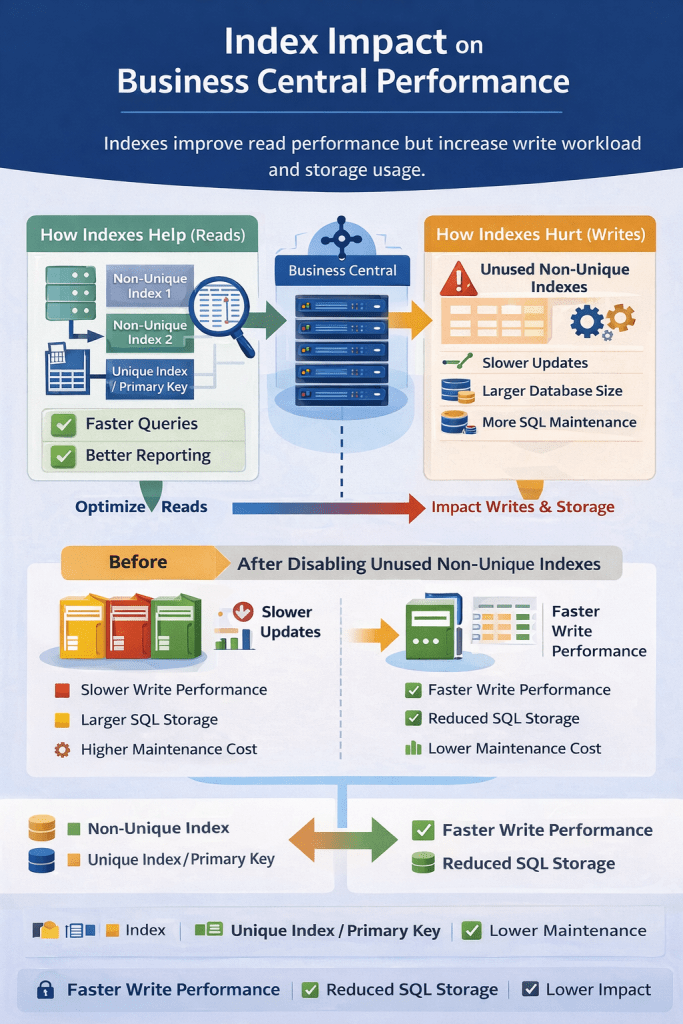
In version 28 of Microsoft Dynamics 365 Business Central, Microsoft introduced a powerful database optimization feature that allows administrators to disable non-unique indexes with low usage.

This capability provides greater control over database performance, storage usage, and write operations, especially in environments with large datasets and high transaction volumes.

Why Index Optimization Matters

Indexes improve query performance, but every index also introduces maintenance overhead.

Whenever records are inserted, updated, or deleted, the SQL engine must also update all associated indexes.

In high-transaction systems such as inventory, warehouse, and manufacturing operations, unnecessary indexes can lead to:

  • Slower posting performance
  • Increased SQL storage consumption
  • Higher index maintenance cost
  • Longer backup and restore time

By allowing administrators to disable rarely used indexes, Business Central now provides more flexibility to tune database performance.

How to Disable an Index

To disable an index, follow these steps:

  1. Open Table Information in Business Central.
  2. Click on Table No
  3. It will open Table Data Management Card
  4. Clear the Enabled in Database checkbox.

Once disabled, the index is immediately removed from active maintenance, meaning the database engine no longer updates it during data modifications.

Article content

Index Types That Cannot Be Disabled

Article content

These indexes are essential for system functionality and consistency, so they cannot be turned off.

Activation Behavior

Index management behaves differently depending on the operation.

Article content

The delayed activation for enabling indexes prevents heavy index rebuild operations during working hours.

Technical Impact on Performance

1. Faster Write Operations

Each index must be updated when records change.Disabling unused indexes reduces the number of updates required, resulting in faster:


2. Reduced SQL Storage Consumption

Indexes can consume a significant portion of database storage. In large systems with millions of records, removing unnecessary indexes can free several gigabytes of space.


3. Better Performance During High Transactions

Environments with high transaction volumes, such as:

  • Manufacturing
  • Retail
  • E-commerce integrations
  • Warehouse management

can benefit from reduced index overhead during posting.

For example:

When posting thousands of item journal lines, fewer indexes mean less SQL maintenance work.


4. Improved SQL Maintenance Operations

Large numbers of indexes increase the workload for:

  • SQL statistics updates
  • Index rebuilds
  • Database maintenance jobs

By disabling unused indexes, administrators can reduce maintenance windows and resource consumption.

The ability to turn off non-unique indexes per company in Microsoft Dynamics 365 Business Central v28 is a valuable addition for system administrators and technical consultants.

It provides greater flexibility in optimizing database performance, storage usage, and transaction throughput, especially in large Business Central environments.

When used carefully with proper analysis, this feature can significantly improve system efficiency and operational performance.


Boosting Performance in Business Central with SetAutoCalcFields

In today’s fast-paced business environments, performance optimization is not a luxury — it’s a necessity. Whether you’re building custom reports, extending pages, or writing integration APIs in Microsoft Dynamics 365 Business Central, slow operations can frustrate users and strain resources.

One simple but powerful technique to improve performance is using the SetAutoCalcFields method.

Why FlowFields Matter for Performance

In Business Central, FlowFields are virtual fields calculated on the fly, not stored physically in the database. Examples include:

  • Inventory on Item
  • Balance on Customer

When you retrieve a record, FlowFields are not calculated automatically unless you explicitly call CalcFields().

Manually calculating FlowFields for every record during loops, leading to multiple SQL queries — one for each record — causing heavy load and slower performance.

SetAutoCalcFields solves this by batch-calculating FlowFields along with the record fetch.
Instead of running one query per record, it combines the calculation in a single optimized query.

Imagine fetching 1,000 customers and displaying their balances without SetAutoCalcfields:

CustomerRec.FindSet();
repeat
    CustomerRec.CalcFields(CustomerRec.Balance); // Triggers a DB call every time!
    DisplayBalance(CustomerRec."No.", CustomerRec.Balance);
until CustomerRec.Next() = 0;

Result:
  • 1 SQL query to get Customers
  • + 1,000 SQL queries for Balances

With SetAutoCalcFields:

CustomerRec.SetAutoCalcFields(CustomerRec.Balance);
CustomerRec.FindSet();
repeat
    DisplayBalance(CustomerRec."No.", CustomerRec.Balance);
until CustomerRec.Next() = 0;

Result:
  • 1 SQL query to get Customers and Balances together

Benefits of Using SetAutoCalcFields

  • Improved Page Load Times: By deferring calculations, pages with numerous records and calculated fields will load significantly faster.
  • Faster Report Generation: Reports that rely on calculated fields will be generated more quickly as the calculations are performed only when the field’s value is actually needed for display or processing.
  • Reduced Database Load: Fewer automatic calculations translate to fewer database queries, reducing the overall load on your Business Central database.
  • Enhanced User Experience: Snappier performance leads to a more responsive and enjoyable user experience.

Best Practices for Performance Gains

To maximize the benefits of SetAutoCalcFields:

  • Only specify necessary FlowFields:
    Don’t auto-calculate every FlowField — focus on what your process needs.
  • Use it before data retrieval:
    Call SetAutoCalcFields before FindSet(), FindFirst(), or FindLast()
  • Avoid unnecessary recalculations:
    Once FlowFields are set to auto-calculate, do not manually call CalcFields() again for the same fields.
  • Monitor heavy FlowFields:
    Some FlowFields (e.g., Inventory) involve complex sums across tables — only auto-calculate when really needed.
  • Profile your code:
    Use Performance Profiler to measure improvements.

Using SetAutoCalcFields properly can lead to dramatic performance improvements in Business Central.
By reducing SQL traffic, simplifying code, and batch-fetching FlowFields intelligently, you can create faster, cleaner, and more scalable applications.

A small change in your coding habits can create a big impact for your users.

Hope this will help..

Calculate Values Only for Visible FlowFields in Business Central

FlowFields in Business Central are incredibly powerful, allowing you to dynamically calculate values based on related data. However, what happens when you have many FlowFields, but only a few are visible on a page? Calculating all of them can lead to unnecessary performance overhead. Business Central’s clever design allows you to optimize this process by calculating values only for visible FlowFields, significantly improving page load times and overall system responsiveness. Let’s delve into how this works and why it’s beneficial.

FlowFields retrieve data dynamically, often requiring complex calculations or lookups. While this provides real-time insights, it can also impact performance, especially when dealing with large datasets or numerous FlowFields.

Imagine a customer card page with dozens of FlowFields, but you only display a handful of them in the main view. Calculating all those FlowFields, even the hidden ones, wastes valuable resources. This is where Business Central’s “calculate only visible” feature comes into play.

The “Calculate Only Visible” Concept

Business Central intelligently determines which Flow Fields are currently visible on the page and only calculates those values. This optimization minimizes unnecessary computations, resulting in faster page loads and improved user experience.

Benefits of Calculating Only Visible FlowFields:

  • Improved Performance: Faster page load times, especially for pages with numerous FlowFields.
  • Enhanced User Experience: Smoother navigation and faster data retrieval.
  • Scalability: Allows you to design complex pages with many FlowFields without sacrificing performance.

Business Central’s runtime environment dynamically analyzes the page layout and determines which Flow Fields are currently displayed.

Business Central’s “calculate only visible FlowFields” feature is a powerful optimization that can significantly improve performance and user experience

Stay tuned for more.

How to add keys in Base table of Business Central

With the release of Wave 1 2021 lot of new feature introduced . One of the new feature is that partners now can add keys in base table with customized field which was not possible earlier

Today we will see how we can do that

First Lets see what is happening is earlier version of business central. In earlier version we can only add the keys with the field added on table extension and we are not able to see the field available in base table for adding in keys

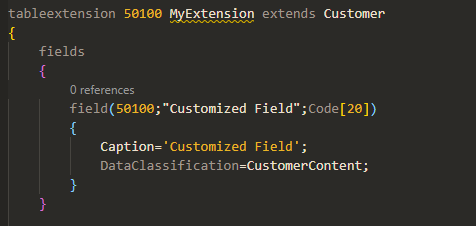
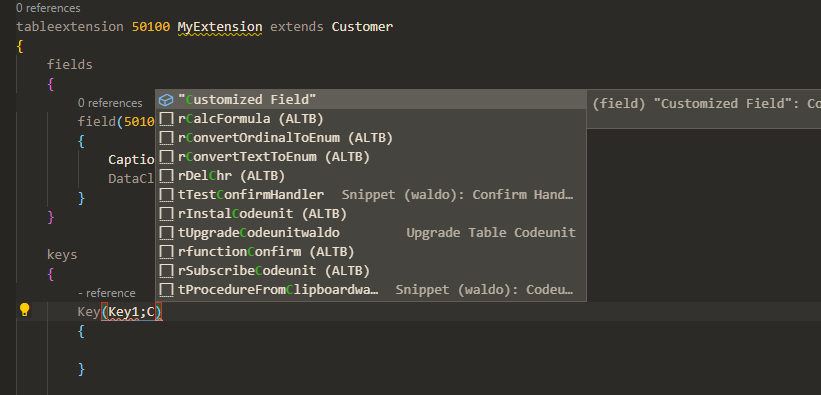
Look at the following example as I created one simple extension in V17 and trying to add key

Now when I try to add the keys in this table extension it will populate only those fields which are added in table extension

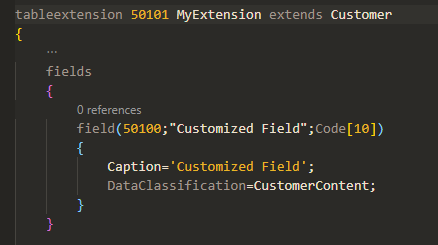
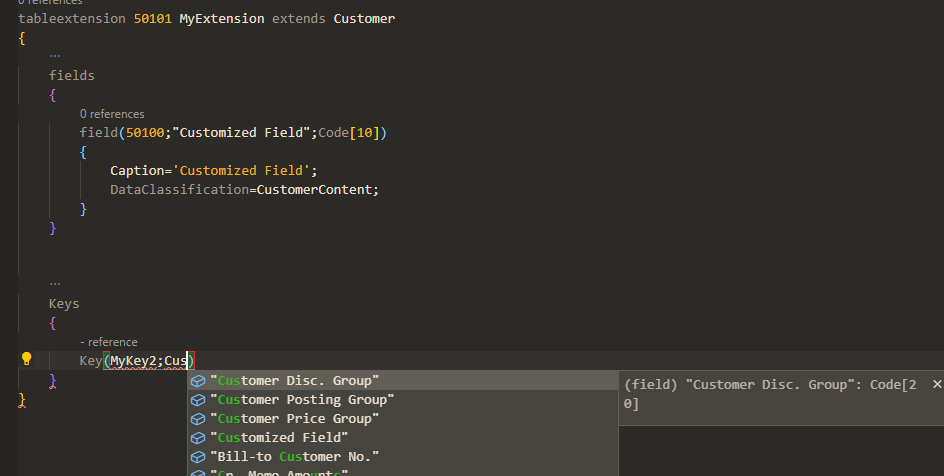
In New version of Business central i.e. Wave 1 2021 we can Add more keys with base table fields and use to improve the performance while retrieving or updating records

Now look at the following example for new version .Just created a simple table extension

Now when I try to add the keys in this table extension it will populate all the fields available in base table as below

So that means we can create keys with

  1. Fields from base table
  2. Fields from table extension

Can I create combination of fields from base table and fields from table extension ?

And the obvious answer is no and reasons are simple that both base table and table extension are two different tables in Sql server.

I hope you will find this information useful

So stay tuned for more updates.

Cheers.

How to Use SetLoadFields in Business Central for performance

With the release of Business Central Wave 1 2020 the partial records capability is available.

The partial records capability is allows for loading a subset of normal table fields when accessing the data source based on SQL.

To access the data source we use GET ,FIND NEXT. When we use these methods then runtime it load all fields and will hamper the performance while fetching the records.

Now from business central wave 2 2020 we can use ‘Partial records’ capability.

To accommodate partial records following methods available in business central. These methods are avaaible on RecordRef and Record datatype in AL. These methods are loaded in two groups i.e. Subsequent loads and Current load

MethodDescription
SetLoadFieldsSpecifies a set of fields to be initially loaded when the record is retrieved from its data source.
AddLoadFieldsAdds fields to the current set of fields to be initially loaded when the record is retrieved from its data source.
AreFieldsLoadedChecks whether the specified fields are all initially loaded.
LoadFieldsAccesses the table’s corresponding data source to load the specified fields.

Lets See few examples of these methods

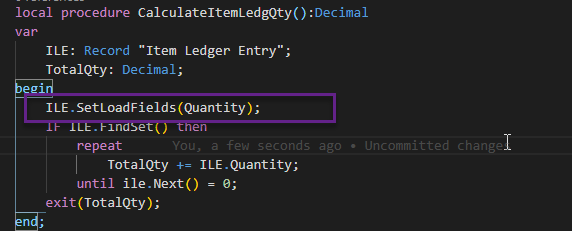
Following example is for summation of Quantity fields from Item Ledger Entry .In this we would like to make calculation of only Quantity fields and not require the others fields to be loaded.

If you see SetLoadFields is call before data fetching operation starts. This will determine which fields needed for Find Set Call.

Advantage of this is that it gives you ability to load only those fields which are required to perform the operation which will make execution of code faster and give more performance. This feature is recommended to use while fetching the records and not for Insert,Modify or Delete operation.

Using the above method we added the required fields but what will happen to other fields which hasn’t been loaded .In such cases platform does an implicit GET and loads the missing fields, called as JIT Loading (Just in Time).

When JIT loading occurs, another access to the data source is required. These operations tend to be faster because they’re GET calls. GET calls can often be served by the server’s data cache or become clustered index seeks on the database.

Iterating over records in the database, enumerator is created based on selected fields and row is fetched when NEXT is called. but certain operations will not follow enumerator like if we passing a record by value and not by VAR .This operation actually creates new copy of the record and original records and copy of the record not share the filters ,selected field for loading. That means to access unloaded fields it need to trigger JIT load and but it will not update enumerator which means for future iterations also require JIT load.

To overcome such situations we can do following

  1. Pass the record reference using VAR.
  2. Call AddLoadFields on the original records before passing by value.
  3. Use SetLoadFields before calling FIND,GET,NEXT.

Hope this will help you to understand for partial records and stay tuned for more updates.

For more updates you can follow my blog on following channels.